




Most services allow you to email directly to your account for example:
While emailing to your services is great but the email address is usually difficult to remember like [email protected], so I found the simplest way is to create a Google Group with a name you can remember (like [email protected]), then set up a rule which forwards all emails to the group onto your nominated service.
I forward my todo list to Asana, so if an email sparks a task for me to do then I forward the email to my [email protected] list in Asana keeping my work all in one place.
For this example I'm going to use Asana but you can substitute the email address we use here for the email address of your services inbox. Find out more on their website help section or ask me and i'll point you in the right direction.
Step 1 - Create your Group
Google Groups are pretty flexible, but because of this they can be a tad bit confusing to set up. First go to your admin console (admin.google.com), then navigate to the Groups section:

Then create your new group:
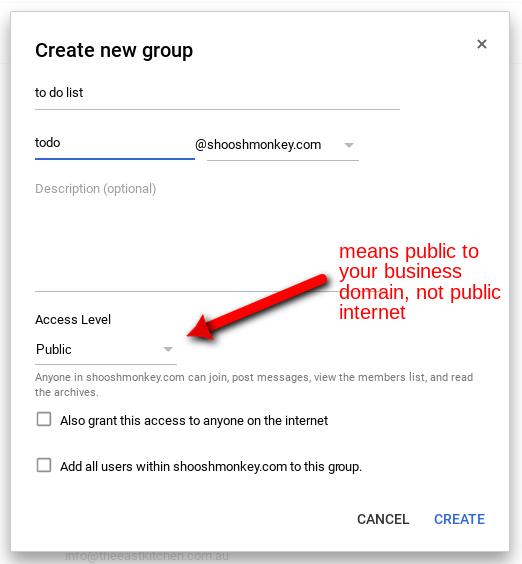
Ensure the access level is set to public so everyone in your business can use it, otherwise change it.
NOTE: Public means available for anyone in your G Suite domain can email/use to this group. It does not mean public to the internet. The option below grants public access to the internet so if you want clients to email your accounts group, check this option. There are many more access restrictions I'll go through in another post but for now this is a safe option.
Select Create.
Now in your Gmail go to the settings page and click on the Forwarding and POP/IMAP tab.

Click the Add a forwarding address
Now follow the instructions and add in the email address given to you by your cloud service (eg. in Asana it's x-[projectID]@mail.asana.com)
Once you have verified the email address (you will have received the confirmation email in your service eg. a new task would be created in your Asana project with the links and code), go to the Filters and Blocked Addresses tab in the Gmail settings page.
Scroll to the bottom on the page and click Create new filter

in the TO field, add the Google Group you just created then click Create filter with this search

Select Forward it to: and choose the forwarding address you enabled earlier. Click Create Filter.
Some other options you can set:
Skip the Inbox
If you don't want to see the emails, they will be auto archived and forwarded straight to your service inbox.
Apply the label
auto add a label for easy filing and searching.
That's it, send yourself a test email and then go to your cloud service and make sure it arrives. Happy forwarding! :)